Deploy Autodesk Desktop Connector
Autodesk Desktop Connector is a special type of pain in the ass for a few reasons:
- Major version changes generally requires complete uninstallation of the previous version (i.e. upgrading from version 16.x to 17.x).
- The installation requires that the ADC application is closed since the installation file is incapable of closing any running instances itself.
- The file is pretty large which can cause some issues with Action1 timing out or not reporting when a task is complete.
ADC Installation
Prepare Install Files
The first thing is downloading the executable from Autodesk through this strange place. Not sure why it can't be in any of the other locations where Autodesk applications are downloaded.
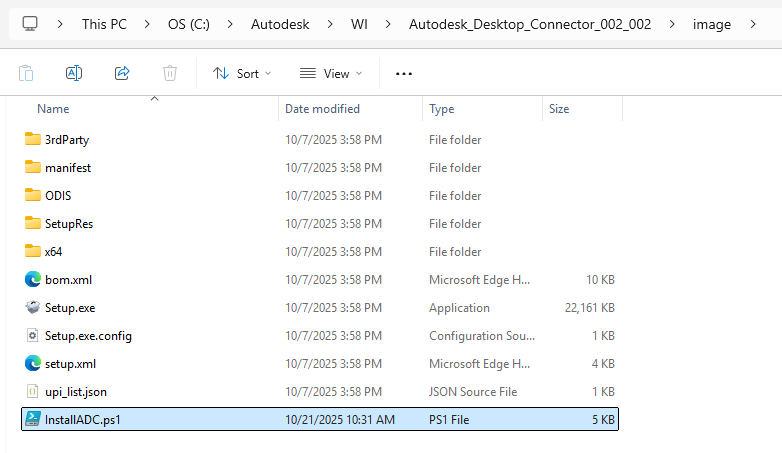
YOU MUST UNPACK the exe file! Running the .exe file only unpacks the installation files to the default C:\Autodesk\WI... folder, but it should propmt you to open folder after it finishes unpacking.


Action1 Software Repository
Software Package Settings
| Name | Autodesk Desktop Connector |
|---|---|
| Vendor | Autodesk |
| Description | |
| Platform | Windows |
| Scope | My Enterprise |
Software Package Versions
- Create a version:
General Tab
| Version Number | 5.2.0.25181 |
|---|---|
| Release Date | |
| Display Name Match (Specific) | ^Autodesk Desktop Connector$ |
| Notes | |
| OS Types | Windows 10, Windows 11 |
| Update Type | Regular Updates |
Installation Tab
| x64 installation file | CLOUD: Install file.zip |
|---|---|
| Installation type | Other: .exe or script (.cmd, .bat or .ps1) |
| Success exit codes | 0 |
| Reboot exit codes | 1641,3010 |
Powershell Script
Open up your PS script editor of choice and create the following:
<#
.SYNOPSIS
    Modified from Autodesk's sample script for deployments of Autodesk Desktop Connector.

.LINK
    https://help.autodesk.com/view/CONNECT/ENU/

.NOTES
    Date:    10/21/2025
#>

function ShutdownDesktopConnector
{
    $processName = "DesktopConnector.Applications.Tray"
    if (Get-Process $processName -ErrorAction SilentlyContinue)
    {
        Stop-Process -Name $processName -Force
    }
}

function GetInstalledVersion
{
    $appName = "Autodesk Desktop Connector"
    $installEntries = Get-ItemProperty 'HKLM:\Software\Microsoft\Windows\CurrentVersion\Uninstall\*' | Select-Object DisplayName, DisplayVersion, UninstallString | Where-Object { $_.DisplayName -match "^*$appname*"} | Where-Object { $_.UninstallString -match "^*ODIS*"}

    if ($installEntries.Length -eq 0)
    {
        return $null
    }
    return $installEntries[0]
}

function UninstallPreV17VersionIfExists
{
    Write-Host "Checking for existing installs of Desktop Connector..."

    # Search the registry for an installed version of Desktop Connector
    $installedVersion = GetInstalledVersion
    if ($installedVersion -eq $null)
    {
        Write-Host "No other version of DC is installed on this machine, continuing..."
        return
    }

    $version = $installedVersion.DisplayVersion
    $isPreV17 = $version.StartsWith("14.") -or $version.StartsWith("16.")

    if ($isPreV17 -eq $true)
    {
        Write-Host "Pre 17.X version of DC found on machine. This script will uninstall this so that it may continue..."

        ######################################################################################################################
        #                                                     !IMPORTANT!                                                    #
        ######################################################################################################################
        # To migrate from an earlier install to a 16.X install, the user's local workspace should be cleaned out
        # If there is any unsynced data on the user's machine in these locations, this may wipe it out
        Write-Host "Clearing out old local workspace locations for users..." -ForegroundColor Yellow
        $profilePaths = Get-ChildItem 'HKLM:\Software\Microsoft\Windows NT\CurrentVersion\ProfileList' | ForEach-Object { $_.GetValue('ProfileImagePath') }

        ForEach ($profilePath in $profilePaths)
        {
            RemoveDirectoryRecursive([io.path]::Combine($profilePath, "ACCDocs"))
            RemoveDirectoryRecursive([io.path]::Combine($profilePath, "ADrive"))
            RemoveDirectoryRecursive([io.path]::Combine($profilePath, "BIMTeam"))
            RemoveDirectoryRecursive([io.path]::Combine($profilePath, "Fusion"))
        }

        Write-Host "Uninstalling version $version..."
        Uninstall $installedVersion

        Write-Host "Old version uninstalled, continuing with installation of new version..."
    }
    else
    {
        Write-Host "Existing version $version found installed; upgrading..."
    }
}

# Adapted from: https://stackoverflow.com/a/39587889/495262
function RemoveDirectoryRecursive($directory)
{
    # create a temporary (empty) directory
    $parent = [System.IO.Path]::GetTempPath()
    [string] $name = [System.Guid]::NewGuid()
    $tempDirectory = New-Item -ItemType Directory -Path (Join-Path $parent $name)

    try
    {
        robocopy /MIR $tempDirectory.FullName $directory | out-null
        Remove-Item $directory -Force -Recurse | out-null
    }
    finally
    {
        Remove-Item $tempDirectory -Force -Recurse | out-null
    }
}

$ErrorActionPreference = "Stop"

Write-Host "Running $($MyInvocation.MyCommand.Path)..."

# Compute the path to the installer exe and check that it exists
$pathToInstaller = [io.path]::Combine($PSScriptRoot, "Setup.exe")
$installerExists = Test-Path $pathToInstaller
if ($installerExists -eq $false)
{
    Write-Host "An installer for was not found at $pathToInstaller" -ForegroundColor Red
    Write-Host "This script must be placed inside the same directory as the Setup.exe" -ForegroundColor Yellow
    exit 1
}

Write-Host "Installer found at $pathToInstaller..."

Write-Host "Shutting down any running instances of Desktop Connector..."
ShutdownDesktopConnector

UninstallPreV16VersionIfExists

Write-Host "Running installer..."
$process = Start-Process -FilePath $pathToInstaller -Wait -PassThru -ArgumentList "-i install -q"
if ($process.ExitCode -ne 0)
{
    Write-Host "Encountered error while running installer!" -ForegroundColor Red
    exit 1
}

Write-Host "Installation complete"
exit 0
Putting it All Together
Place .ps1 file in the same folder as the unpacked ADC folder (same directory as the setup.exe file). Everything in this folder needs to then be packaged as a ZIP file before being uploaded to Action1.